

Customer Deposits
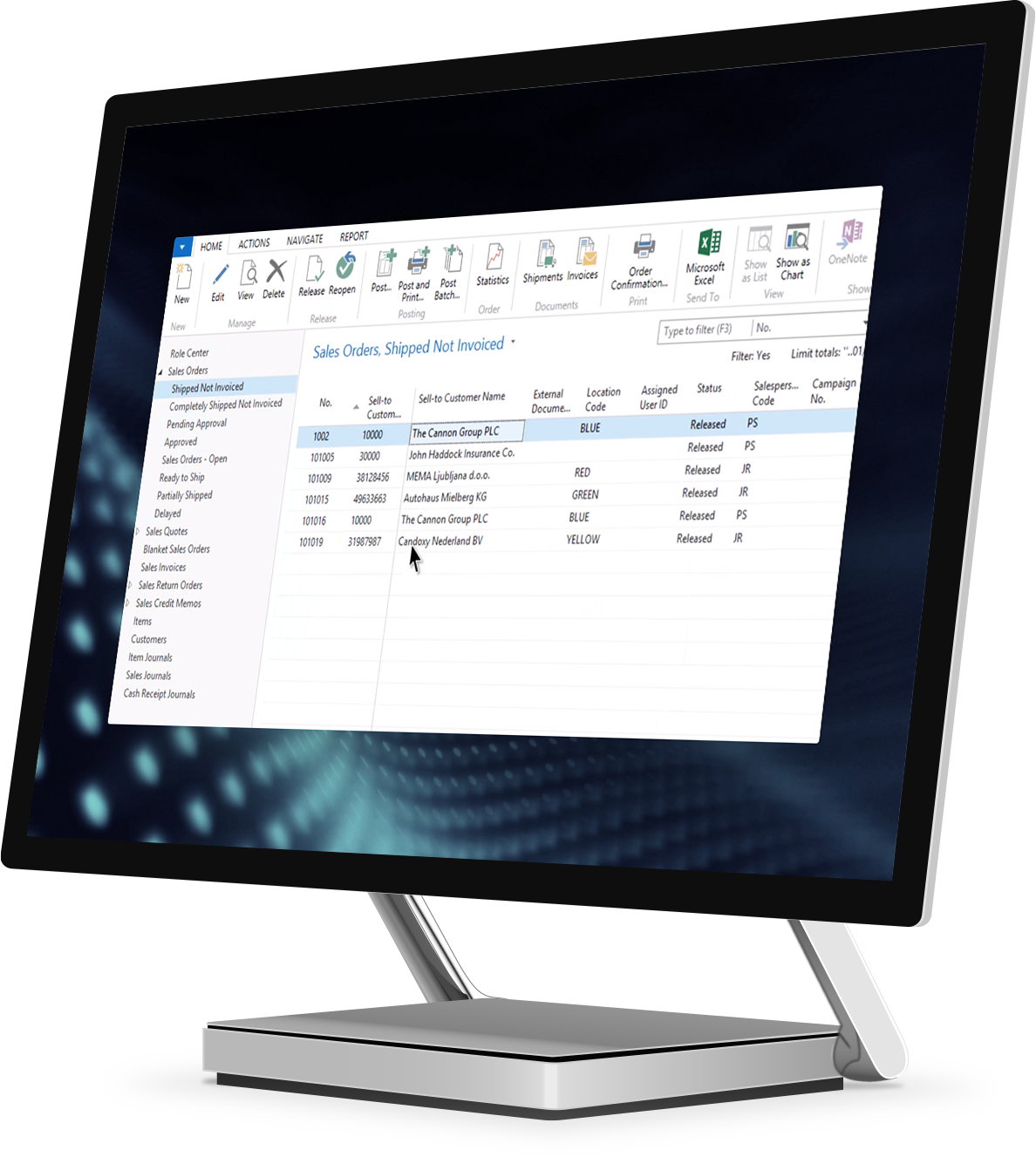
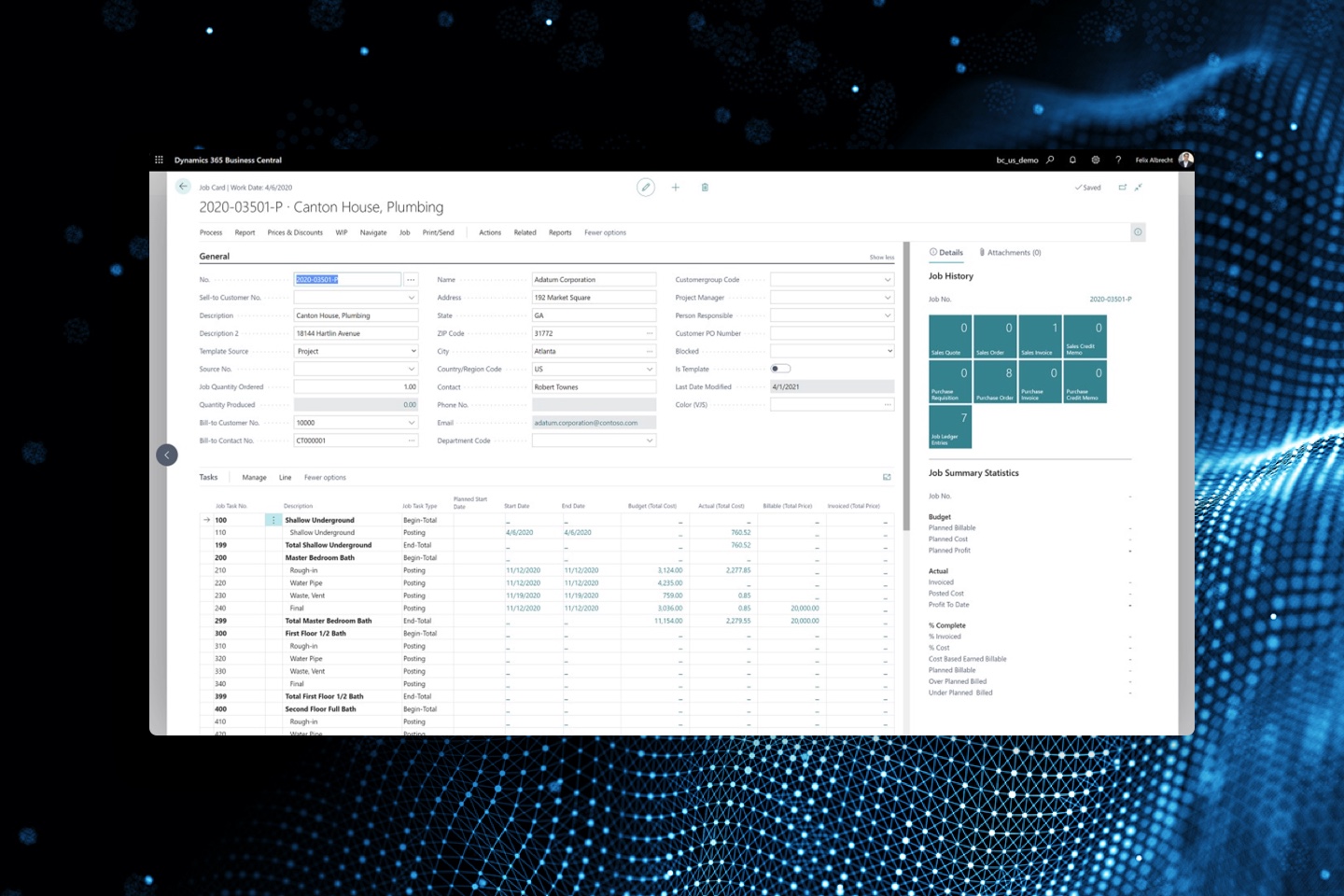
Customer Deposits Add-on enables you to record and track deposits (down payments) made by customers. Deposits are tracked separately from accounts receivables and they have their own entries table separate from the customer ledger entries. There are two types of Deposits: “Deposits on Account” and “Deposits on Orders” (shown above).
A “Deposit Account No.” has been added to the Customer’s Posting Group. When deposits are posted they will now credit a deposit account. When Sales Orders are posted with a deposit applied to them, the standard posting process is maintained with the additional posting of the deposit, which now debits the deposit account and credits the accounts receivables by the deposit amount.
Customer Deposits can be entered in either of two areas in Sales & Receivables. Simply enter customer deposits in the Cash Receipts Journal and later apply the deposit to one or more sales orders. Or you can enter a deposit directly on a Sales Order. (Deposit Tab) This is like adding it “on-the-fly”.
Customer Deposits can be applied to multiple orders. The Deposits Entry table has it’s own detailed entries which tracks and stores the history of how the Deposit was applied.
Customer Deposits is fully compliant with basic and advanced dimensions. Deposits are stored historically in the Deposits Entry table as well as in the Posted Invoice History. Drill downs, lookups, and navigate are all features of the Deposits application.
Sales Orders and Sales Invoice documents print the application of a deposit on the transaction. The “Balance Due” is now the last Amount shown.
Several reports track Customer’s open deposits and the status of the deposit. The Aged Accounts Receivables reports also tracks and reports open deposits. Deposits are reported and aged separately from the aged receivables.
Features:
• New Deposit Account in Customer Posting Group
• Enter Deposits in Cash Receipts Journal or on new Sales Order Card.
• Apply old Deposits to new Sales Orders.
• New Field on Customer Card: “Deposits Balance ($).”
Benefits:
• Accurately present deposits as deposits vs. credits to accounts receivable.
• Speedy Application of existing deposits to new Sales Orders.
- Click Image to Watch Video on Customer Deposits





